Last updated
The Passwordless settings are under Theme My Login → Passwordless. Turn on login links, passkeys or both, then choose which roles can use links.
On a multisite network, the settings are in the Network Admin and apply to every site on the network.
Passwordless needs PHP 8.0 or later. Passkeys also need the site to be served over HTTPS.
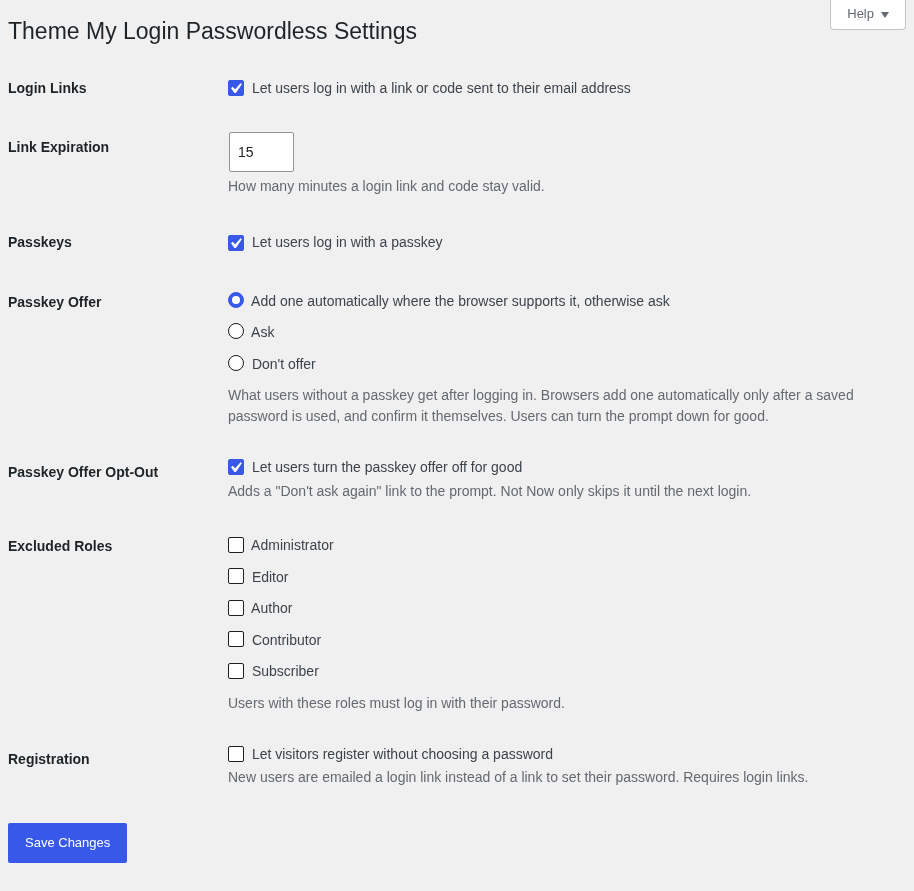
Login Links
Check "Let users log in with a link or code sent to their email address" to add an "Email Me a Login Link" button to the login form. It's checked by default. See Logging In with a Link or Code.
Link Expiration
How many minutes a login link and its code stay valid, from 1 to 1440 (one day). The default is 15.
Passkeys
Check "Let users log in with a passkey" to add a "Log In with a Passkey" button to the login form and a Passkeys section to each user's profile. It's checked by default. See Logging In with a Passkey.
Passkey Offer
What users without a passkey get after they log in:
- Add one automatically where the browser supports it, otherwise ask (the default): right after a saved password is used, browsers that support it add a passkey on their own and confirm it themselves. Every other login shows a prompt to add one.
- Ask: always show the prompt.
- Don't offer: no passkey is offered.
The offer has no effect while passkeys are off.
Passkey Offer Opt-Out
Check "Let users turn the passkey offer off for good" to add a "Don't ask again" link to the prompt. Without it, "Not Now" skips the prompt only until the next login. It's checked by default.
Excluded Roles
Users with a checked role can't log in with a link or code. If they ask for one, they're emailed a note to log in with their password instead. They can still use a passkey. No roles are checked by default.
On a multisite network, a user's role on the site they're logging in to is the one that counts.
Registration
Check "Let visitors register without choosing a password" to remove the password fields from the registration form. New users are emailed a login link and code, good for one day, instead of a link to set their password. Login links must be on, and users in an excluded role still get the set-password link. It's unchecked by default. With Notifications installed, a customized New User Notification can include the link and code with %login_link%, %login_code% and %link_expiration%.
This setting isn't available on multisite, where signups use WordPress's own activation emails.