Last updated
The Social settings are under Theme My Login → Social. Choose which forms show the buttons, then set up each provider you want to offer.
On a multisite network, the settings are in the Network Admin and apply to every site on the network.
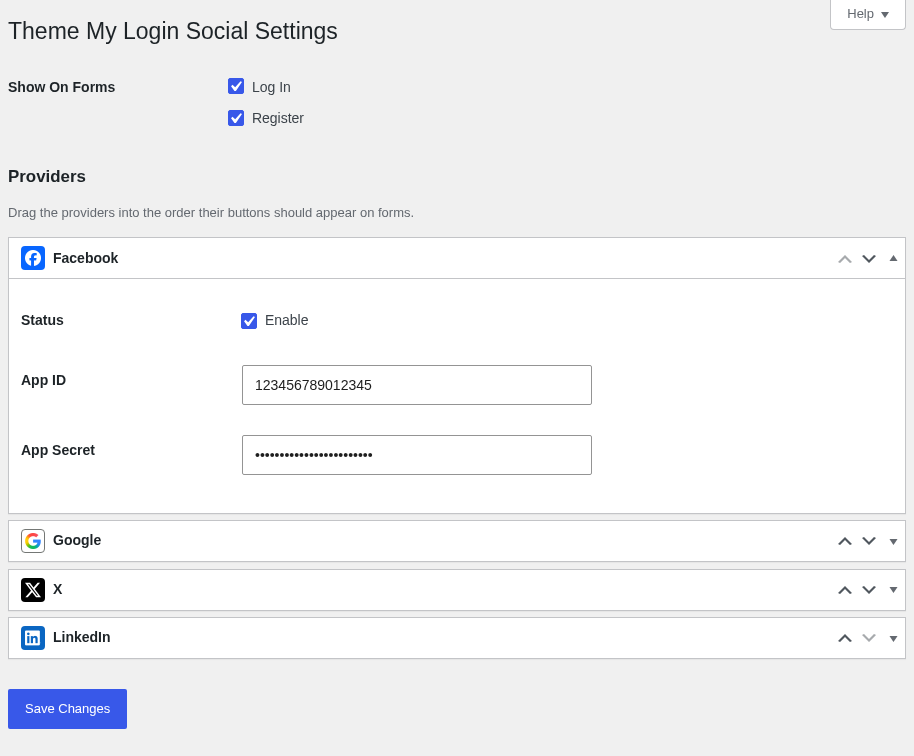
Show On Forms
Check "Log In", "Register" or both to choose which forms show the buttons. Only "Log In" is checked by default. On a multisite network, "Register" puts the buttons on the signup form.
Providers
Each provider has its own box, closed by default. Click a provider's name to open its box, enter the credentials from that provider's app, check "Enable" and then click "Save Changes". A provider's button appears once it's enabled and both credentials are filled in.
Button Order
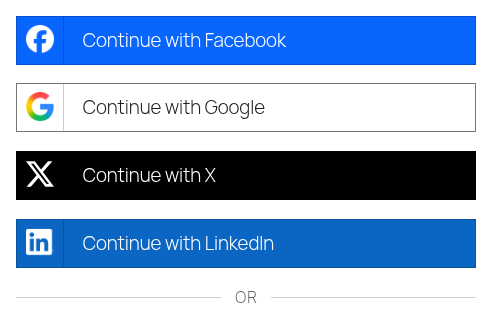
The buttons appear on your forms in the same order as the provider boxes. Drag the boxes into the order you want, or use the arrows on each box, and then click "Save Changes".
How Users Are Matched
The first time someone logs in with a provider, they're matched to an existing user with the same email address. If there's no such user and registration is open, a new user is created for them. If registration is closed, they see "User registration is currently not allowed" instead. After that, they're recognized by their provider account, even if their email address changes.