Last updated
A passkey logs a user in with their fingerprint, face or device screen lock instead of a password. Users add passkeys in the Passkeys section of their profile.
Adding a Passkey
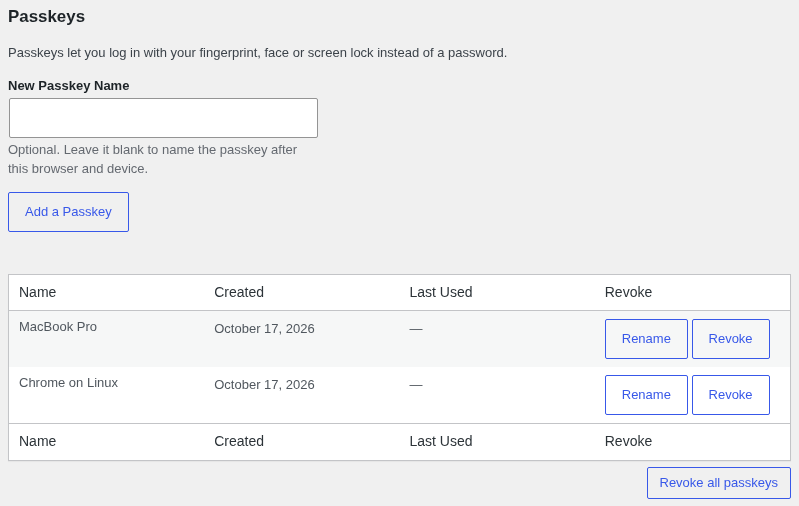
On their profile, a user clicks "Add a Passkey" and follows their browser's prompt. The name is optional: left blank, the passkey is named after the browser and device. The user is emailed that a passkey was added. A user can add as many as they like, one per device or password manager.
The Passkeys section is on the WordPress profile screen and on the profile form from Theme My Login Profiles. Each passkey is listed with when it was created and last used.
Being Offered a Passkey
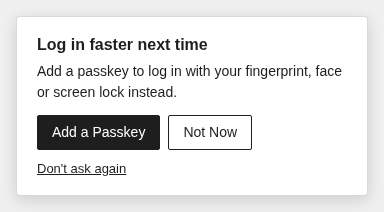
Depending on the Passkey Offer setting, users without a passkey can be offered one after they log in. Some browsers add one on their own right after a saved password is used. Otherwise a "Log in faster next time" prompt offers "Add a Passkey" and "Not Now", which skips it until the next login. If the site allows it, "Don't ask again" turns the prompt off for good.
Logging In
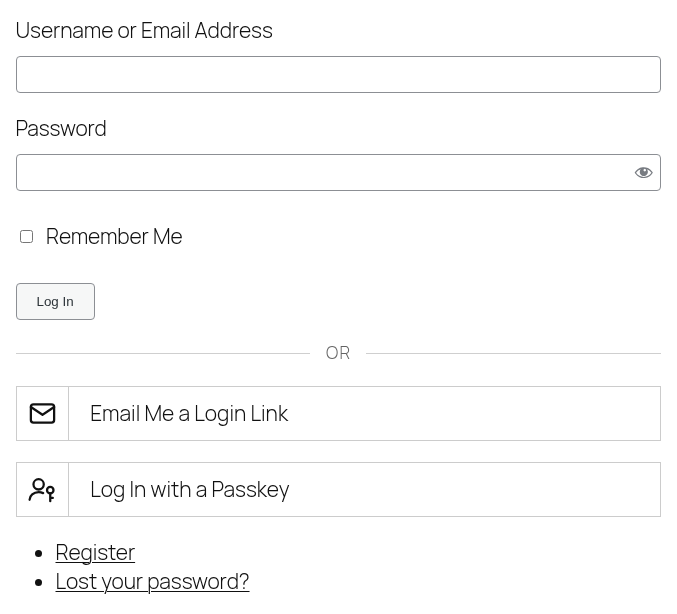
Click "Log In with a Passkey" on the login form and follow the browser's prompt. No username is needed. The button appears only in browsers that support passkeys. In browsers that offer it, clicking into the username field also lists saved passkeys to pick from.
Renaming and Revoking
Each passkey on the profile has "Rename" and "Revoke" buttons, and the WordPress profile screen also has "Revoke all passkeys". A revoked passkey can't be used to log in again. Administrators who can edit a user can see, rename and revoke that user's passkeys, but only users can add their own.
A user who gets an email about a passkey they didn't add should revoke it from their profile right away.
Passkeys and Domains
A passkey only works on the domain it was added on. If the site moves to a new domain, users have to add new passkeys there. On a multisite network where sites have their own domains, a passkey added on one site works only on that site.
With Other Extensions
- 2FA: a passkey already checks both something the user has (their device) and something they are or know (their fingerprint, face or screen lock), so a passkey login skips the 2FA step.
- Moderation: users awaiting activation or approval can't log in with a passkey.
- Security: locked accounts stay locked.
- Notifications: "Passkey Added" and "Passkey Revoked" triggers fire when a passkey changes, with
%passkey_name%holding its name. The "Passkey Added Notification" email can also be edited or turned off under Default Notifications.