Last updated
With 2FA on, users log in with their username and password as usual, then enter a 6-digit code on a second screen before they're logged in.
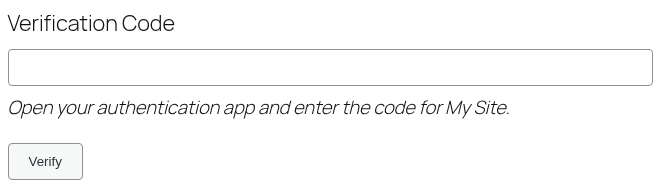
Users with an authenticator app enter the code the app currently shows for the site.
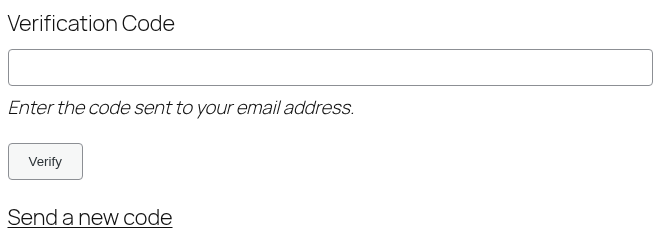
Users who get their codes by email are sent one as soon as their password is accepted. It's good for 10 minutes. "Send a new code" sends another, at most once a minute, and the previous code stops working.
Either way, a backup code works on this screen too. Enter it without the space.
Errors
- "Invalid code." The code was wrong, or has expired. App codes change every 30 seconds, so the device's clock needs to be right.
- "Too many failed 2FA attempts. Try again later." After 3 wrong codes in a row, the user is sent back to the login form and can't try again until 10 minutes after the last one.
- "Your 2FA key has expired. Please log in again." The second screen was left open for more than a day, the browser was closed, or the user started a new login somewhere else. Log in again.
- "A new code could not be sent. Please try again in a moment." A code was sent less than a minute ago, or the site couldn't send email.
With Other Extensions
- Passwordless: a passkey login skips the 2FA step. A login link or code doesn't, and users who get their 2FA codes by email can't use login links at all.